

Quick Answer:
Snapchat Planets usually disappear because your Snapchat+ subscription is inactive, the Friend Solar System setting is turned off, or your friend is no longer in your Top 8 Best Friends list. App bugs and outdated versions can also cause this issue. Most of the time, the problem is easy to fix by checking your settings and updating the app.
Snapchat Planets disappearing can be confusing, especially when they were working fine before. Many users think the feature is removed or their account has a problem. In reality, Snapchat Planets usually disappear because of settings, ranking changes, or app issues. This guide explains all the real reasons why Snapchat Planets disappear and how you can easily fix the problem.
What Does “Snapchat Planets Disappeared” Mean?
When users say their Snapchat Planets disappeared, it does not always mean the feature is completely gone. It usually means the planets are not showing in the way they were before. For some users, planets do not appear for any friend at all, even though they have Snapchat+. For others, the planets disappear for only one person while they still show for other friends.
In some cases, the gold Best Friends badge is visible, but when users tap on it, no planet appears. Because of these different situations, people often say their “Snapchat Planets disappeared” even though the feature is still there.
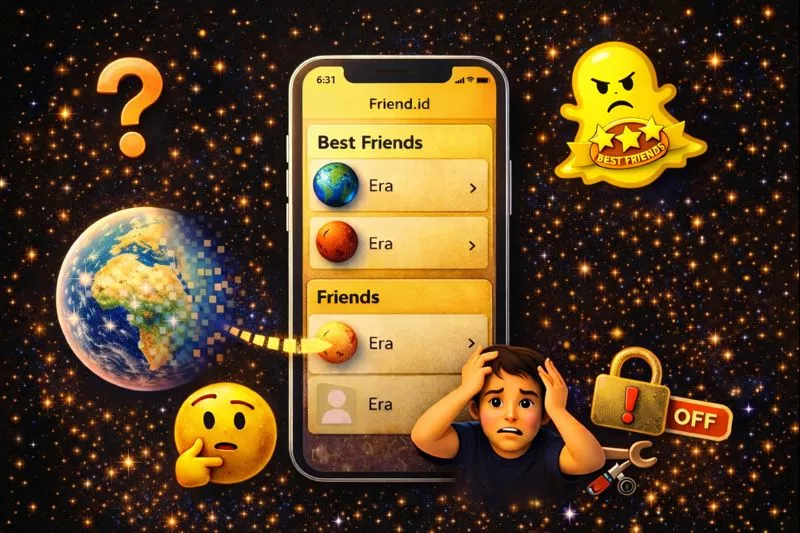
Why Snapchat Planets Disappear Sometimes? (Main Causes)
Snapchat Planets can disappear for different reasons, and in most cases, it is not a serious problem. The feature usually stops showing because of settings changes, ranking updates, or small app issues. Understanding the main causes makes it easy to fix the problem.
1. Snapchat+ Subscription Is Inactive:
Snapchat Planets are only available for Snapchat+ users. If your subscription expires or gets canceled, the planets feature is automatically removed from your account. Always make sure your Snapchat+ plan is active if you want to keep using the Friend Solar System feature.
2. Friend Solar System Is Turned Off:
Snapchat now keeps the Friend Solar System feature turned off by default for many users. After updates or reinstalling the app, this setting can be disabled again. You must manually turn on Friend Solar System from your Snapchat+ settings for the planets to appear.
3. Friend Is No Longer in Your Top 8 Best Friends:
Snapchat Planets only appear for friends who are in your Top 8 Best Friends list. If your interaction with a friend decreases, they can move out of the Top 8. When this happens, their planet will disappear even if you still chat with them sometimes.
4. Best Friends Ranking Changed:
Snapchat ranks your friends based on how often you send snaps and messages. This ranking changes automatically when your activity changes. If you start chatting more with other people, your old friend’s position can drop, and their planet may disappear.
5. Snapchat App Bug or Cache Problem:
Sometimes the Snapchat app does not load features properly because of a small bug or cache problem. This can stop the planet animation from showing. These bugs are usually temporary and can be fixed by restarting or updating the app.
6. Outdated Snapchat Version:
If you are using an old version of Snapchat, the Friend Solar System feature may not work correctly. Some features only work properly on the latest version. Updating the app helps fix missing features and improves performance.
7. Temporary Snapchat Server Issue:
Sometimes Snapchat servers face temporary problems. During this time, features like Friend Solar System may stop working for many users. In most cases, the issue is fixed automatically after a few hours.
How to Fix Snapchat Planets Disappeared issue? (Easy Steps)
If your Snapchat Planets are not showing, don’t worry because this problem is usually easy to fix. In most cases, the issue happens because of disabled settings, app bugs, or ranking changes. Follow these simple steps to bring your Snapchat Planets back.
Check Your Snapchat+ Status
Open your Snapchat profile and go to the Snapchat+ section. Make sure your subscription is active and not expired. If your subscription is inactive, renew it to restore the planets feature.
Turn On Friend Solar System
Go to your profile, open Snapchat+, and find the Friend Solar System option. Turn the toggle ON if it is disabled. This is one of the most common reasons why Snapchat Planets disappear.
Update Snapchat
Open the App Store or Play Store and check for a Snapchat update. Install the latest version if one is available. New updates often fix bugs and missing feature problems.
Restart the App
Close Snapchat completely and then open it again. This refreshes the app and fixes many small glitches. A simple restart can often bring the planets back.
Clear Cache (Android Only)
Open your phone settings, go to Apps, select Snapchat, and open Storage. Tap on Clear Cache to remove temporary files. This helps fix loading and display problems.
Log Out and Log In
Log out of your Snapchat account and then log back in. This refreshes your account connection. It can fix syncing problems that stop planets from showing.
Reinstall Snapchat
If nothing else works, uninstall Snapchat and install it again from the app store. This gives you a fresh app setup and removes all hidden bugs.
Why Do Snapchat Planets Disappear in Different Situations?
Snapchat Planets do not always disappear for the same reason. The problem can be different for each user depending on their settings, activity, and app condition. That is why people describe many different issues as “Snapchat Planets disappeared.”
Below are the most common situations that users face when their Snapchat Planets stop showing.
1. Planets Disappeared for Only One Friend:
If Snapchat Planets disappeared for only one friend, it usually means that friend is no longer in your Top 8 Best Friends list. Your ranking changes based on how much you chat with other people. When the ranking changes, that friend’s planet disappears.
2. Gold Badge Shows but No Planet Appears:
If you can see the gold Best Friends badge but no planet appears after tapping it, this is usually caused by a small app glitch. The feature is not loading properly. Restarting or reinstalling the app often fixes this problem.
3. Planets Disappeared After Snapchat Update:
After updating Snapchat, some settings may reset automatically. The Friend Solar System option can turn off by itself. You need to go to Snapchat+ settings and turn it back on.
4. Planets Not Showing for Any Friend:
If Snapchat Planets are not showing for any friend, your Snapchat+ subscription may be inactive or the Solar System feature is turned off. It can also happen because of an outdated app version. Checking your subscription and updating the app usually fixes it.
5. Planets Keep Appearing and Disappearing:
This happens when your Best Friends ranking keeps changing. Your planet position updates based on your daily chatting activity. This is normal Snapchat behavior and not a bug.
6. Friends Can See Planets but I Can’t:
If your friends can see planets but you cannot, your Friend Solar System feature may be turned off. It can also be caused by account sync problems. Turning on the feature and restarting the app usually solves it.
Do Snapchat Planets Update in Real Time?
Snapchat does not update the Best Friends ranking instantly. When you send snaps or messages, the app needs some time to collect and process your activity. Because of this, your planet position does not change right away.
Sometimes your planet may disappear for a while and then show again later. This delay is normal and happens because the system updates rankings in the background. It does not mean there is a problem with your account or the Snapchat app.
Did Snapchat Remove the Planets Feature?
No, Snapchat has not removed the planets feature. The Friend Solar System feature is still part of Snapchat+ and is available for all active subscribers. You can still see planets when you tap on the gold Best Friends badge in a friend’s profile.
Many users think the feature is gone because Snapchat now keeps it turned off by default. After updates or reinstalling the app, this setting can turn off again, so you need to enable Friend Solar System manually from Snapchat+ settings.

Conclusion:
Snapchat Planets disappearing is a common issue and usually not a serious problem. In most cases, it happens because of ranking changes, disabled settings, or small app bugs. The feature is still available and has not been removed by Snapchat.
By checking your Snapchat+ status, turning on the Friend Solar System option, and keeping your app updated, you can easily bring your planets back. With the right settings and a little patience, the Snapchat Planets feature will work normally again.
Frequently Asked Questions:
Do both people need Snapchat+ for Planets to show?
Many users ask if both friends must have Snapchat+ for planets to appear. Some users report that planets work better when both people have Snapchat+. This confusion often makes users think the feature is broken.
Why do my Snapchat Planets look different than my friend’s?
Users notice that their planets look different from what their friends see. This happens because each person has their own Best Friends ranking. Planets are based on personal activity, not mutual ranking.
Can someone hide their Snapchat Planet from me?
Many users think someone blocked or hid their planet from them. In reality, planets cannot be hidden manually by a user. They only disappear because of ranking or settings.
Why do Snapchat Planets disappear and come back the next day?
It happens because ranking updates slowly and adjusts daily. So planets may disappear for a while and return later.
Do Snapchat Planets work the same on Android and iPhone?
Users often ask if the feature works differently on Android and iPhone. The feature is the same, but app bugs may appear more on some devices. Updates usually fix these platform issues.
Can Snapchat ban remove the Planets feature?
Some users think Snapchat removed planets because of account warnings. Account bans do not remove the planets feature. Planets only depend on Snapchat+ and settings.


